*This article applies to the Classic Woobox campaign templates found at the bottom of the “New Site” creation screen.
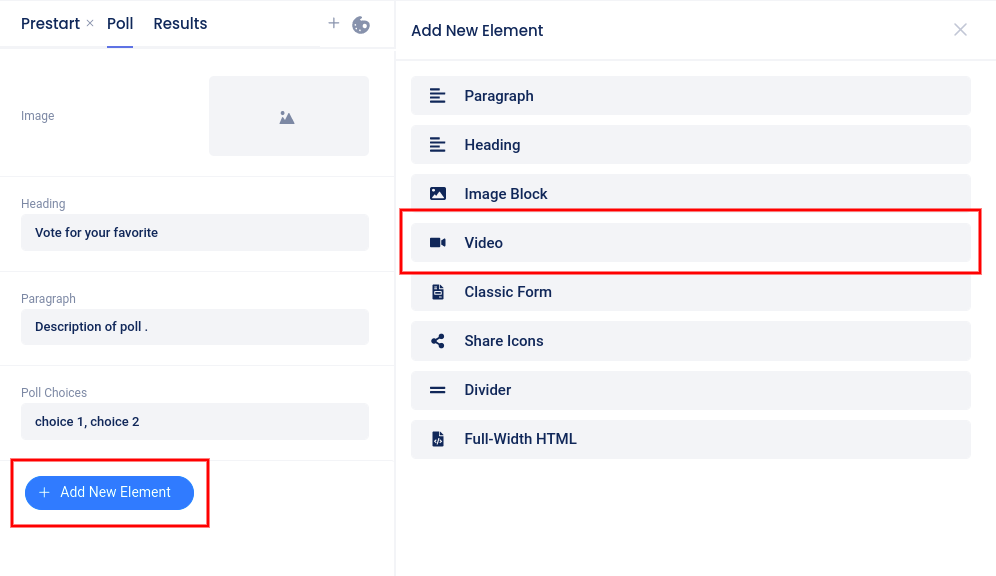
To add a Video element to the page you are currently customizing, click Add New Element in the left sidebar menu in the Design section, then select Video.
In the slider that opens, paste in the video URL (this can be a URL from YouTube, Vimeo, or even Instagram). After adding the video URL, you can click the toggle switch to enable auto-play (this will only work if the hosting platform allows auto-play in embeds).
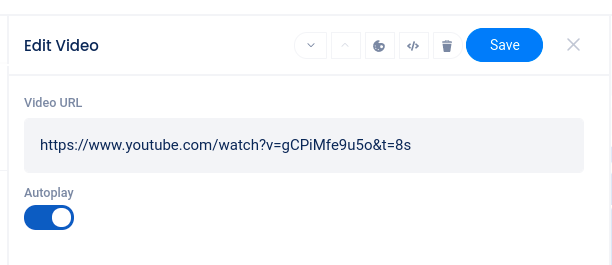
Use the controls at the top of the slider to reposition the element on the page, delete the element, or access styling and custom coding options (depending on your plan level).
