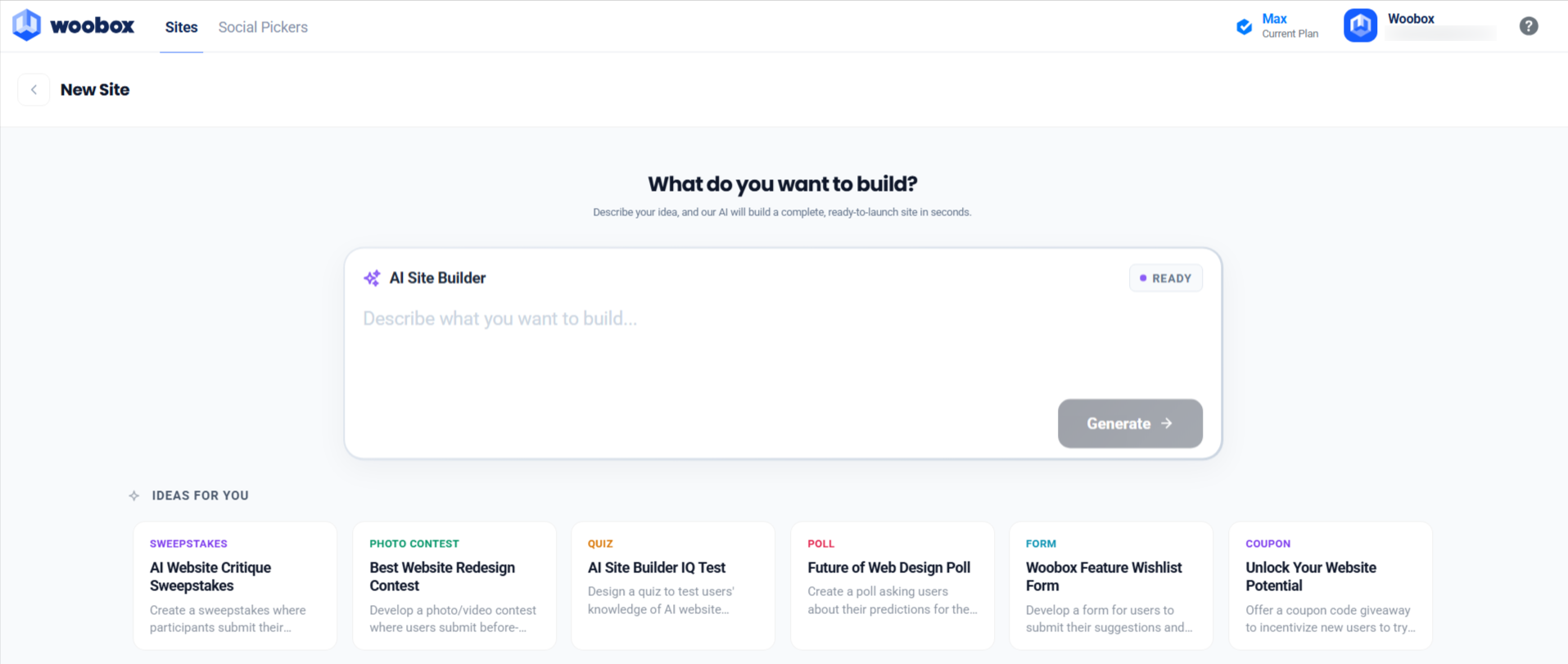
Welcome to the Woobox AI Site Builder! This powerful new tool can help you create and design the ultimate Survey, Form, Giveaway, Photo Contest, or almost any campaign you can imagine – in just a few minutes.
Start by clicking the New Site button, then enter a prompt in the text field.
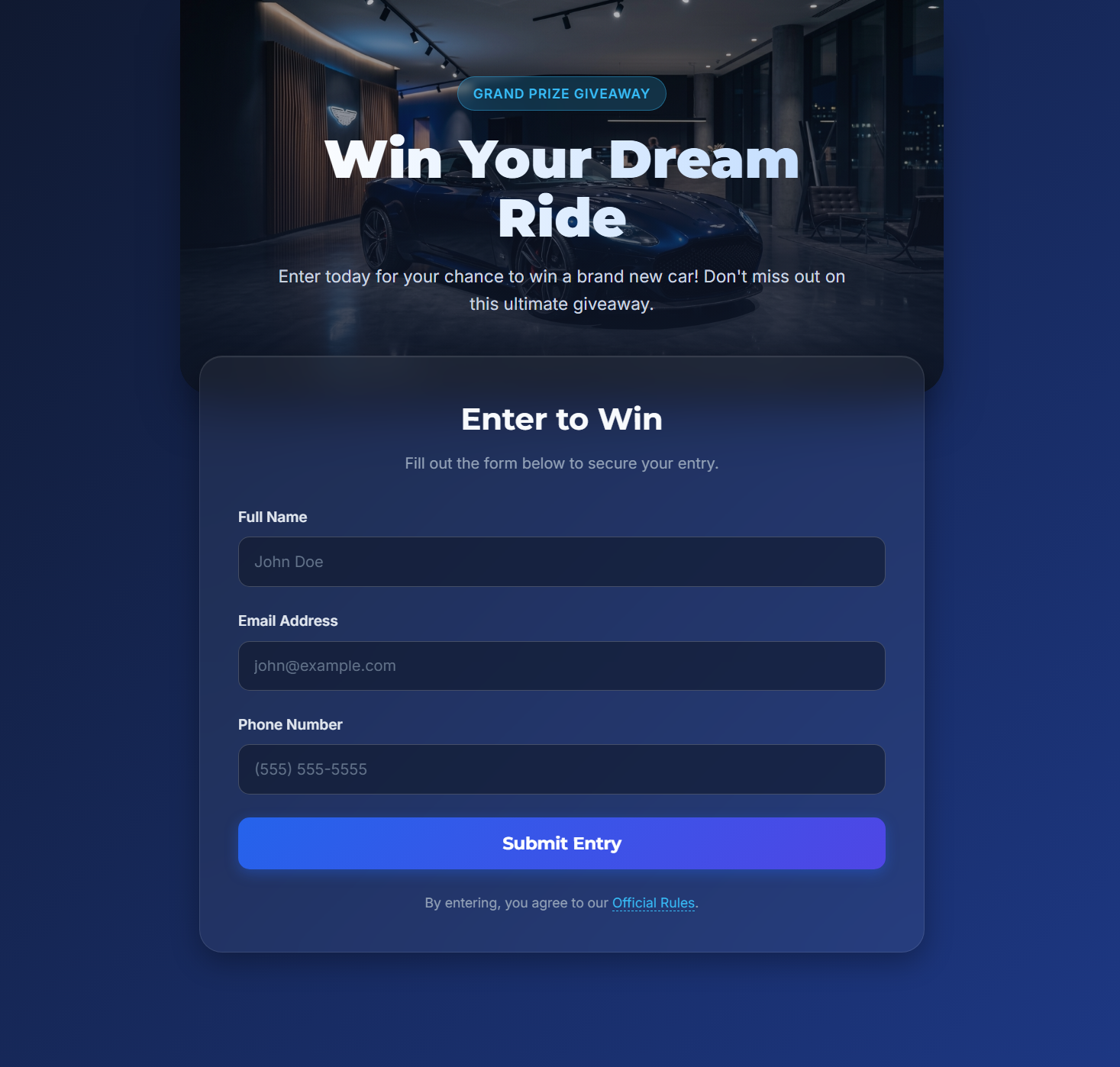
Possible prompts could be; “Create a Giveaway that collects names, emails, and phone numbers. The grand prize is a new car. Make the background gradient blue.”
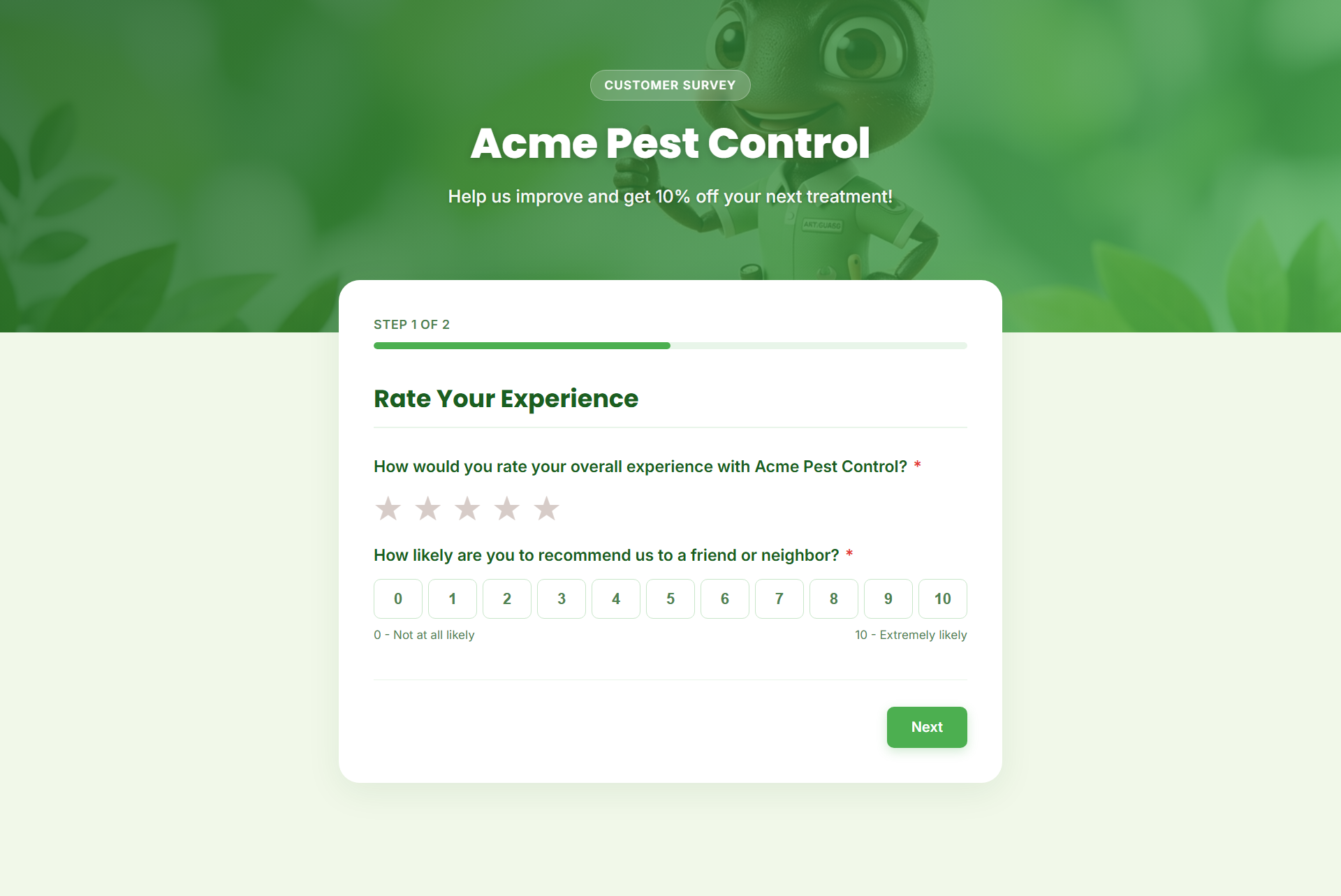
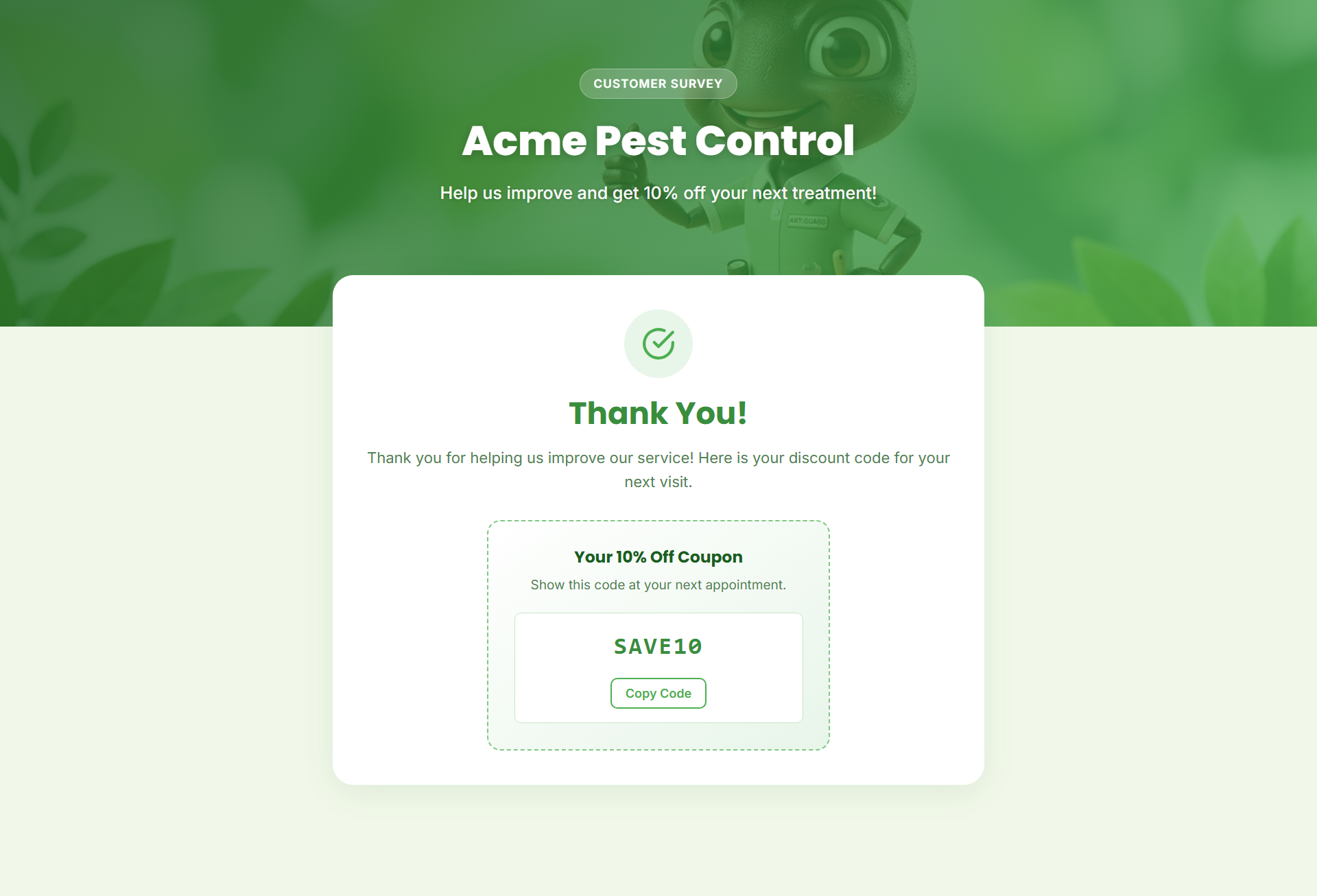
“Setup a customer satisfaction survey for Acme Pest Control Company. Offer a 10% discount coupon for completing the survey. Make it ant/bug themed with light green and white colors.”
“Create a job application/questionnaire for our open Receptionist position. Include a file upload field for resumes, and feature a hero image of a cheerful Receptionist.”
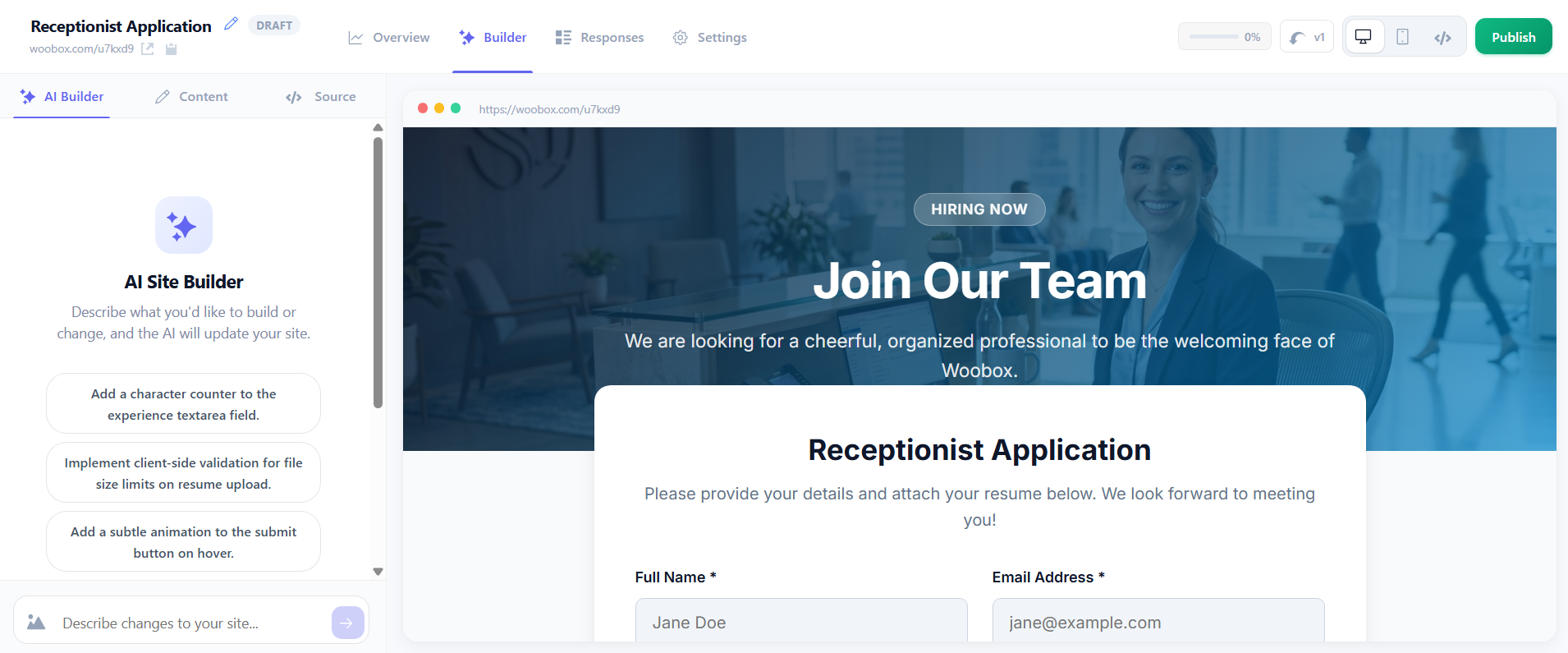
– These are just a few basic examples. Be sure to experiment with combining different features and contest types!
Builder
Once the Landing Page is created, you will be taken to the Builder tab. Here, you can continue refining by inputting more prompts in the AI Builder section, edit headings, labels, and text in the Content section, or directly edit the source code (HTML, CSS, or JavaScript) in the Source section.

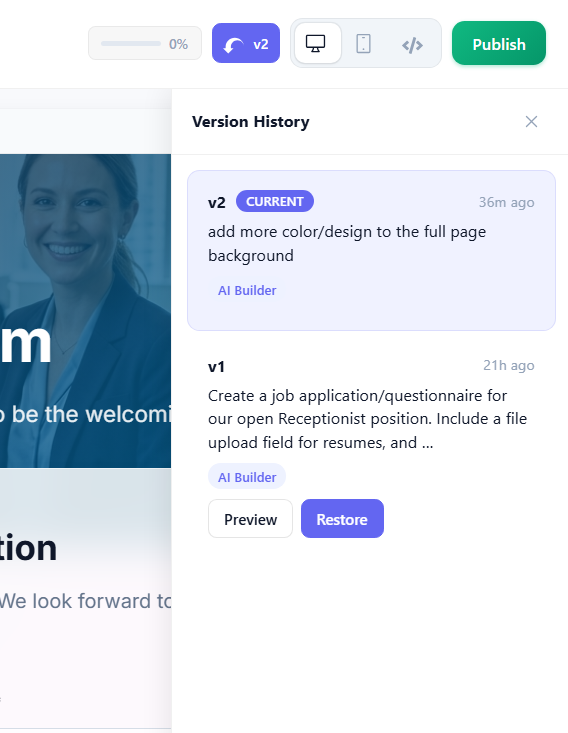
Click the “Version History” (v#) button to see each revision. You can even revert to a previous version by clicking the Restore button on that version. Switch the Builder preview layout with the “monitor” and “mobile device” icons.
Embedding in your website
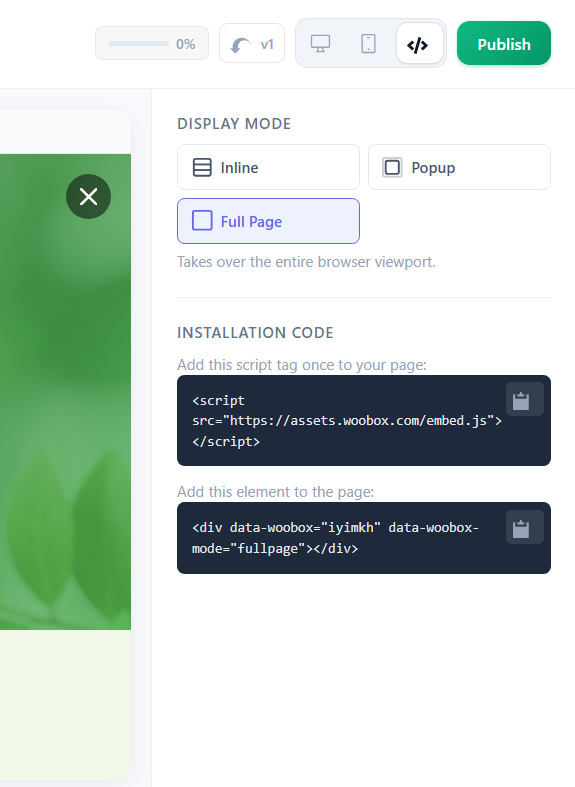
Click the </> icon in the upper right corner of the Builder to select settings and options for the embed, and copy the embed code.
Overview Tab
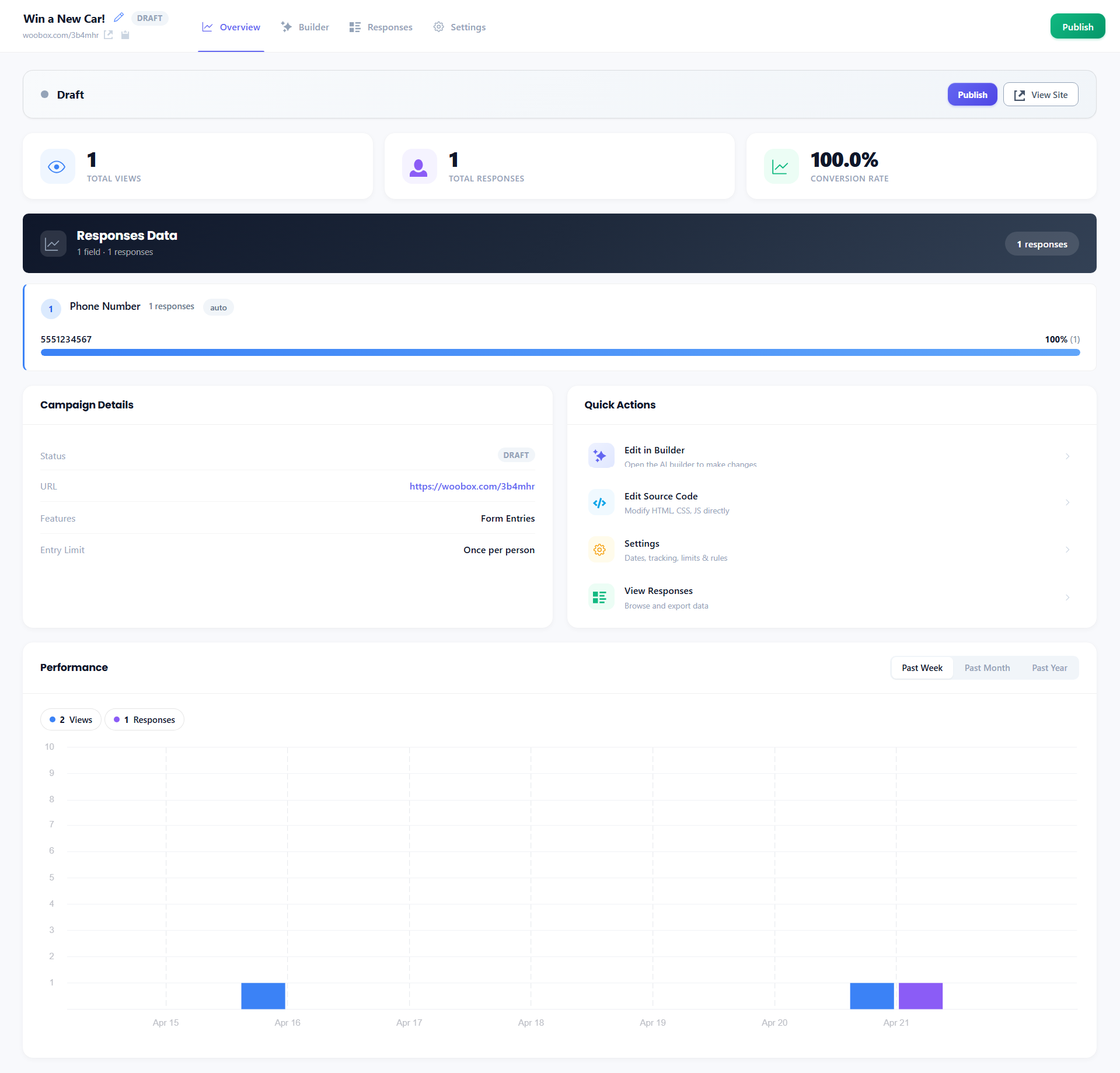
On the Overview tab, you can view basic information about your campaign, such as publish status, view and entry count with subsequent conversion rate, features and limitations, and traffic stats. You can make your Site live with the Publish button, or preview/test the campaign with the View Site button. *Depending on the features of Site, you will also see a preview of those interactions (coupons awarded, survey or quiz responses, etc.) under the conversion totals.
Entries/Responses/Submissions Tab
The name of the tab to the right of “Builder” can vary based on the campaign type, but this is where you can see a quick-view of entries and form data, search for a specific entry with an email address, use the random Winner Picker, or Export your full Entries CSV.
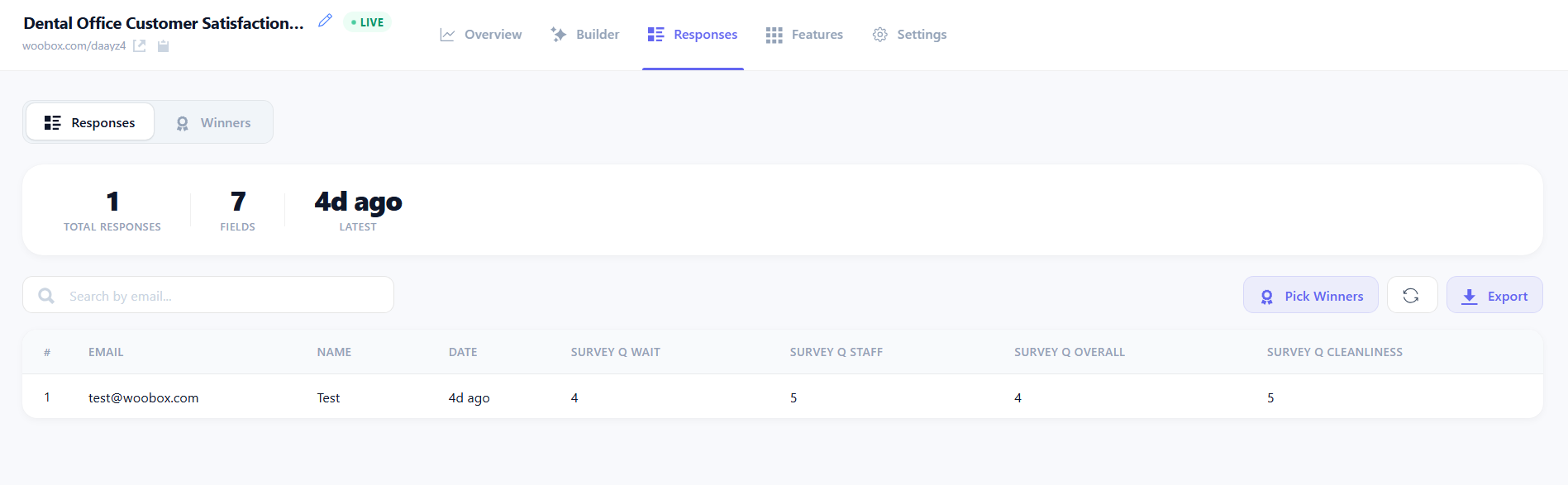
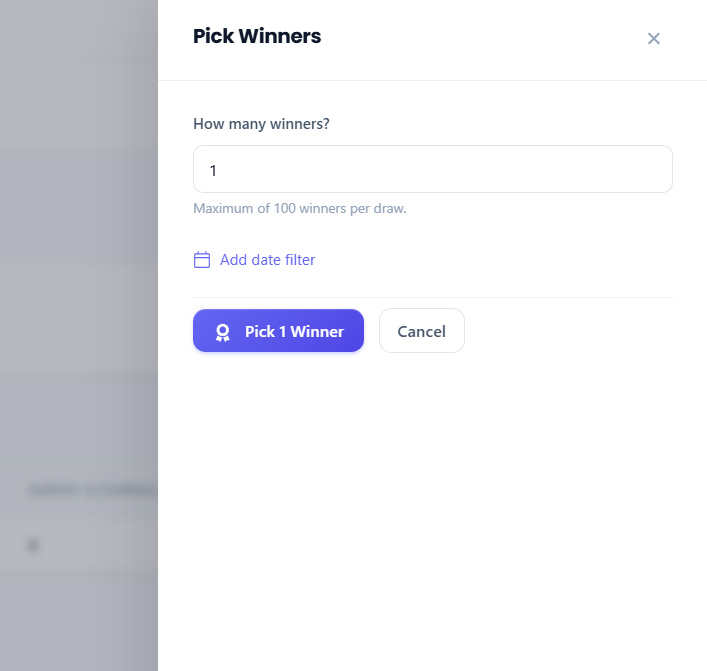
Click the Pick Winners button to open the panel where you can choose the number of winners to be picked, optionally set a date-range to select winners from, and finalize winner-picking. Entrants randomly picked as winners can be viewed and managed by clicking the Winners button (next to ‘Responses’).
Clicking the Export button will start loading your downloadable Entries CSV file (spreadsheet). Once loaded, you can click the green Download button to save the file. If you receive new entries and would like an updated export, click New Export to refresh the download.

Features Tab
*Whether or not your Site has a Features tab will depend on the functions and interactions included in the experience. If your Site includes Quiz or Survey questions, Poll choices, etc., you can edit each of those questions/rating scales/poll choices in the Features tab.
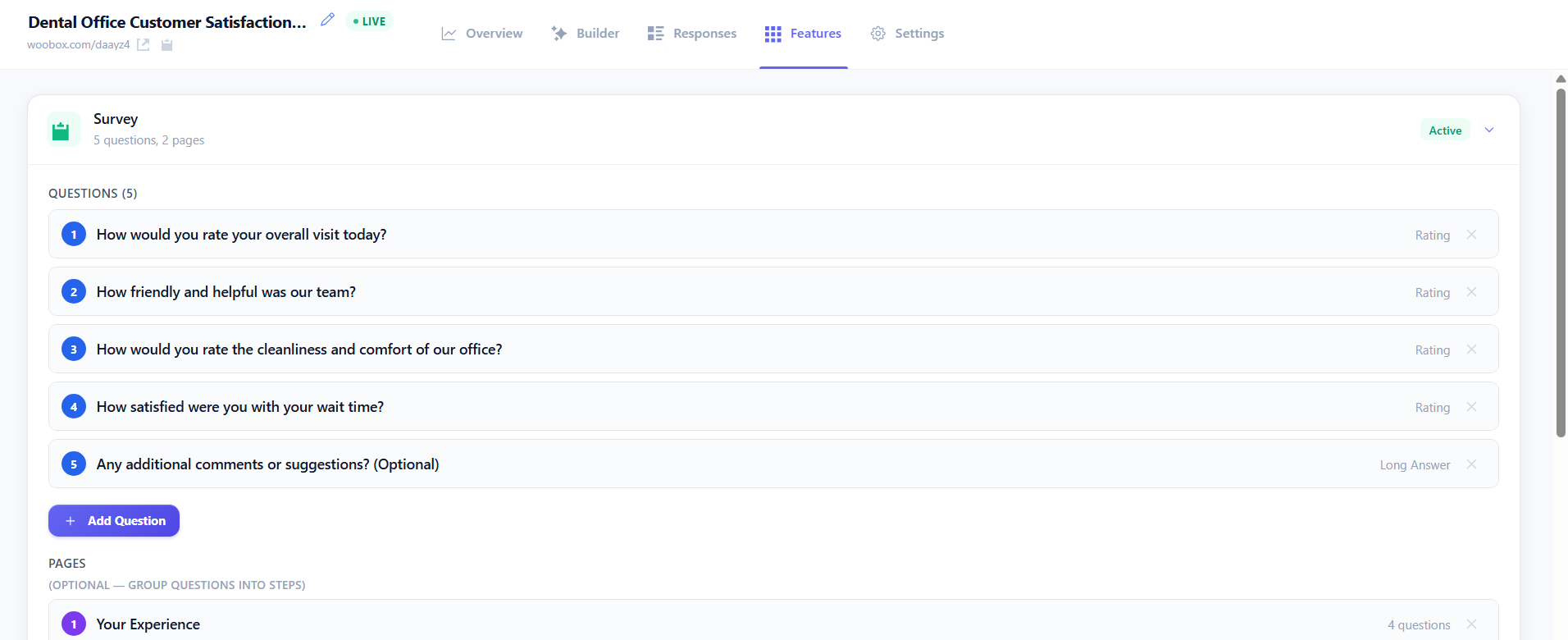
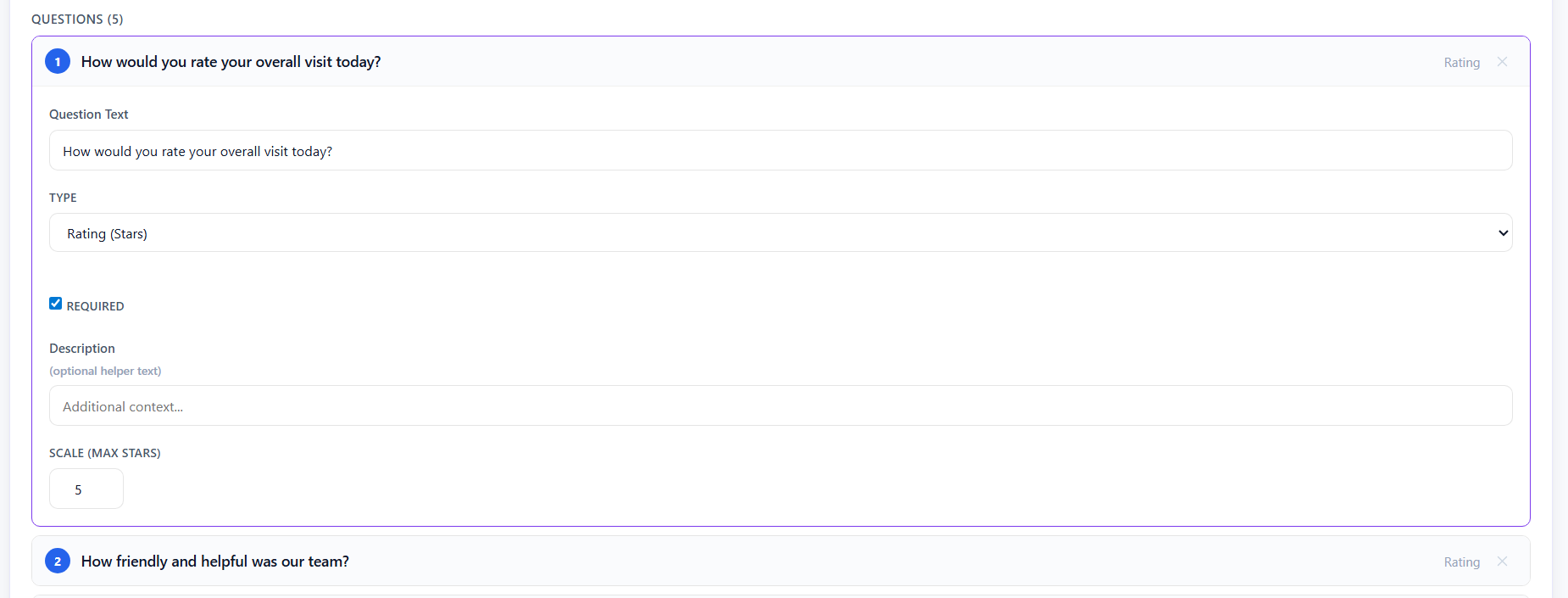
Click directly on a feature line item to expand its settings and edit the text or make changes.
Gallery Tab
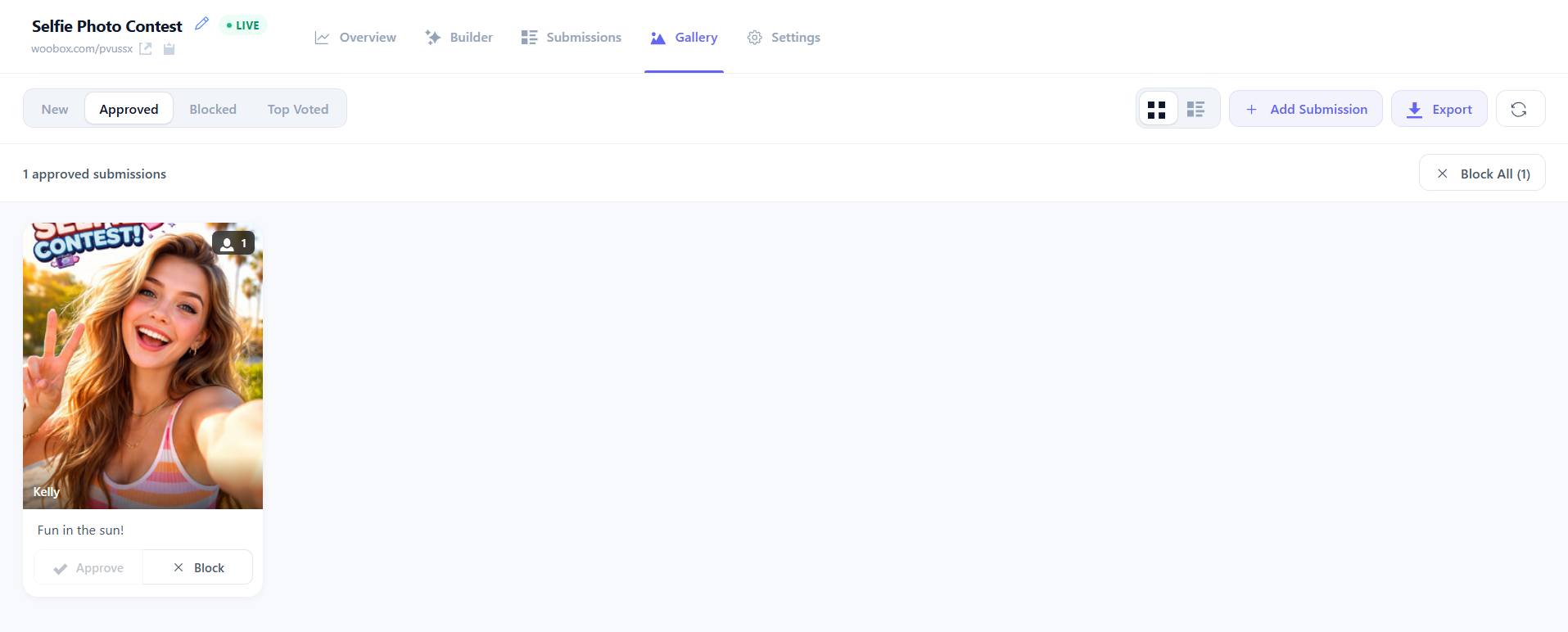
If your Site is a Photo Contest campaign type, it will have a Gallery tab where you can view, manage, and export uploaded submissions. You can learn more about managing submissions here.
Settings Tab
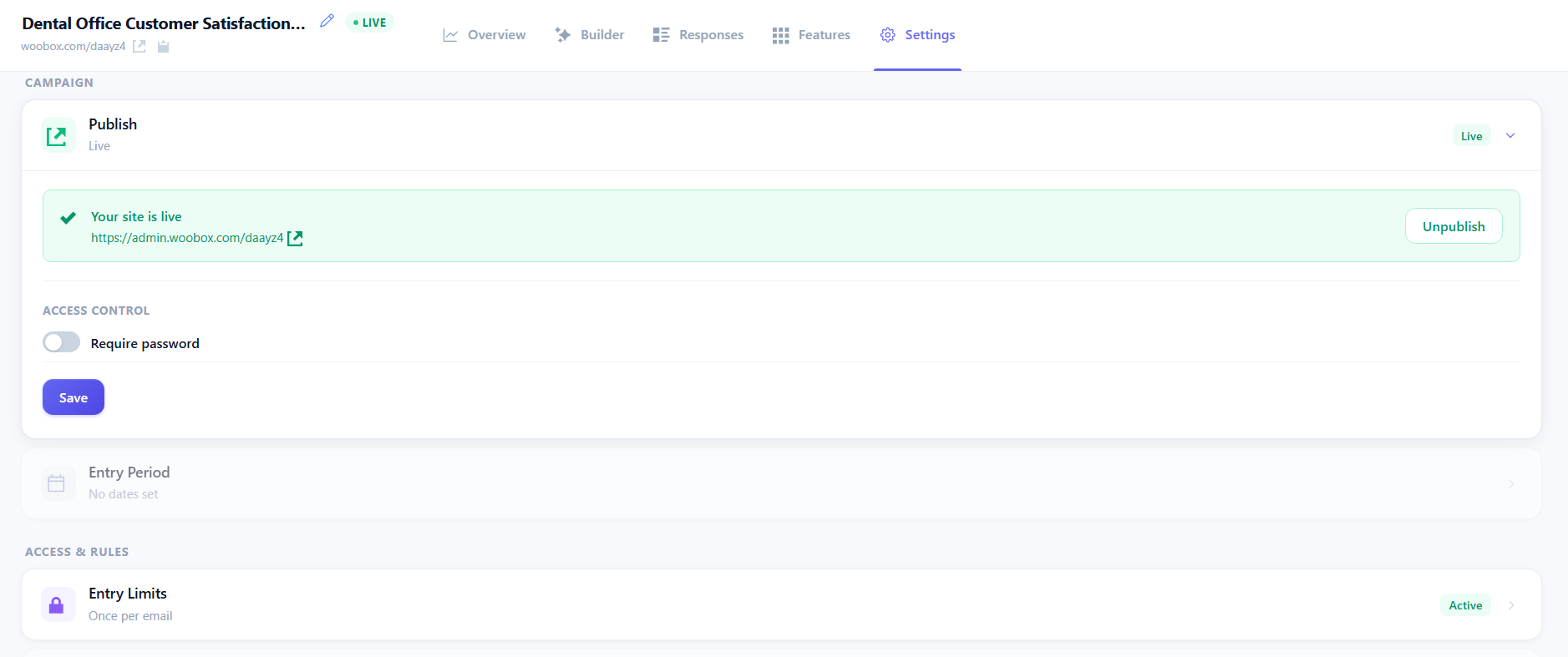
The Settings tab is where you can publish or unpublish the Site, set entry period start and end dates, adjust entry limits, enable Bonus Entries, and edit other basic and advanced settings.
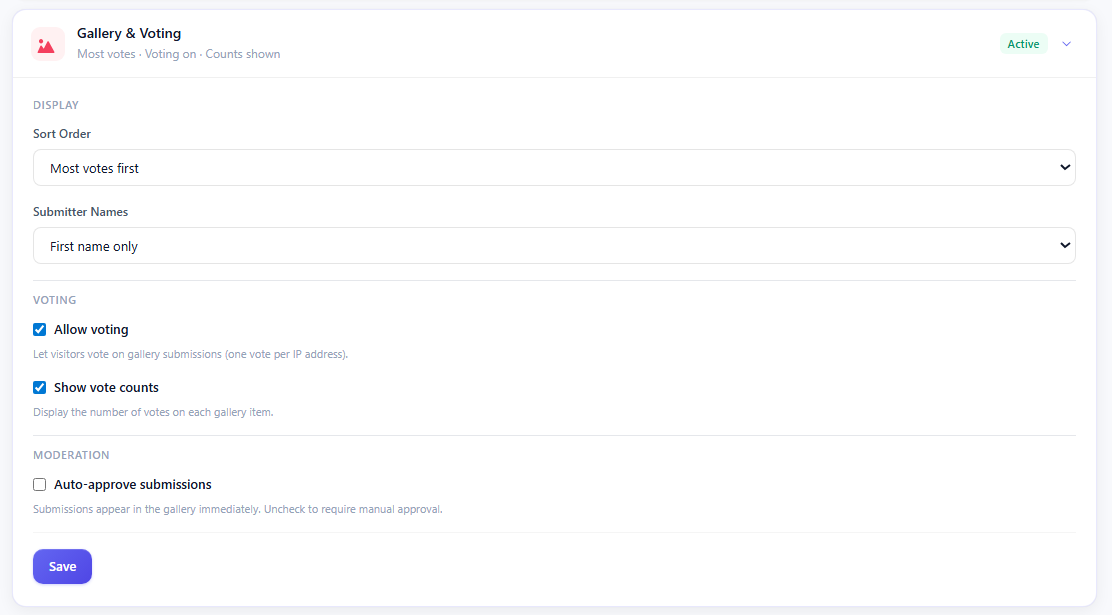
A Photo Contest will have a Gallery & Voting section where you can adjust sorting order, voting options, and moderation.
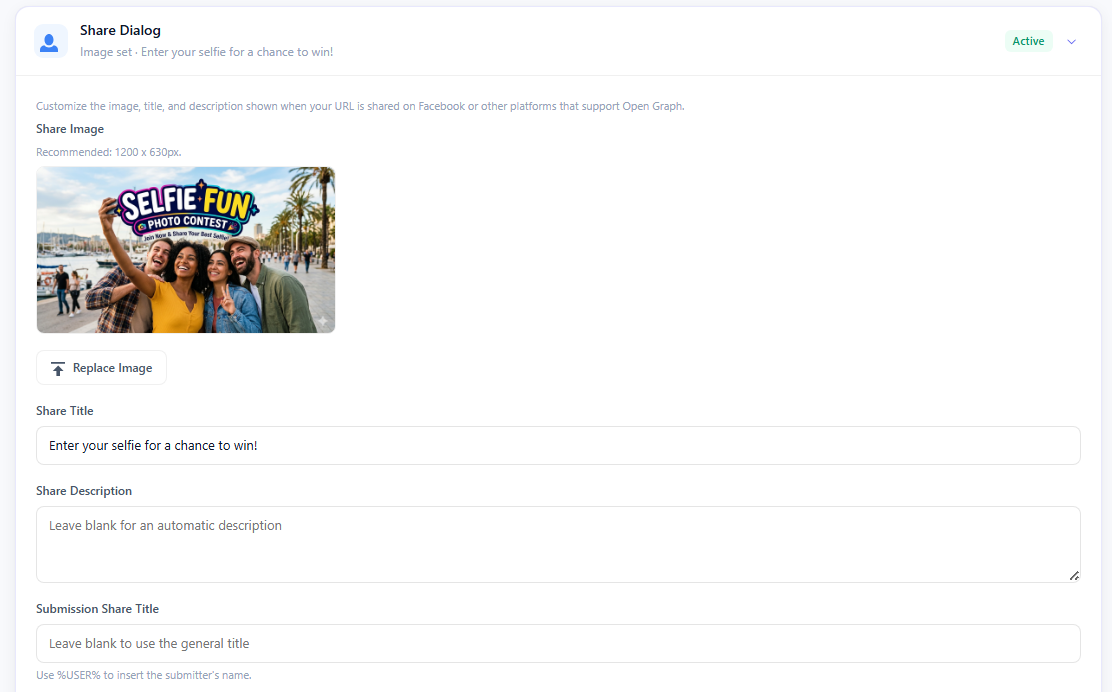
Click Share Dialogue to customize the open graph share customization. The image and title that you add here will appear when you share your Site’s URL in posts or on platforms that support open graph sharing (descriptions may not display depending on the layout of posts on each platform).
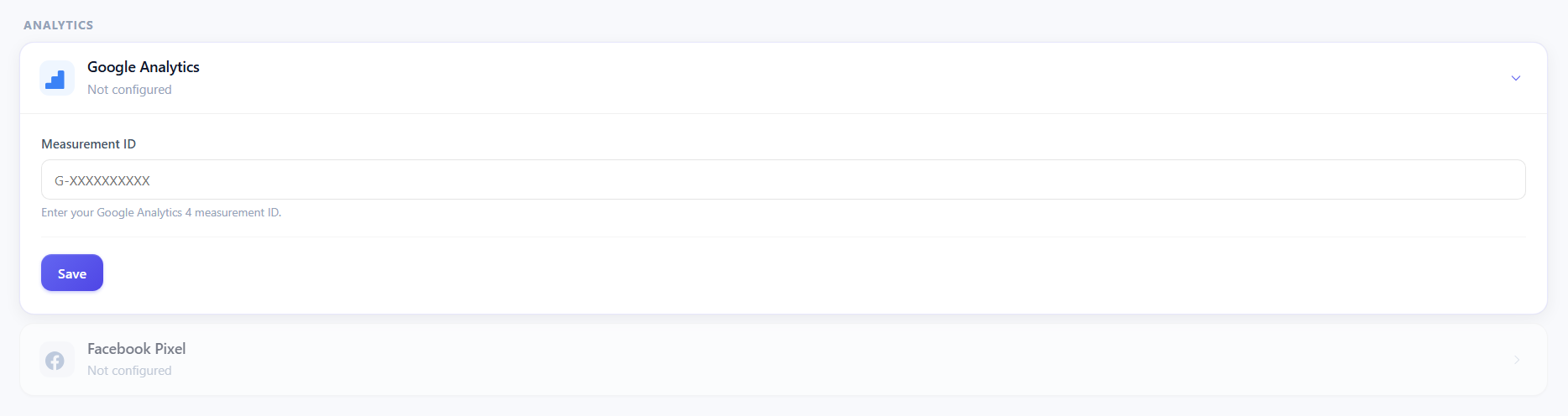
In the Analytics category, click Google Analytics or Facebook Pixel to add your third-party tracking ID or pixel. Adding tracking pixels here will apply them as default for the business, but they can be manually changed in each individual site.
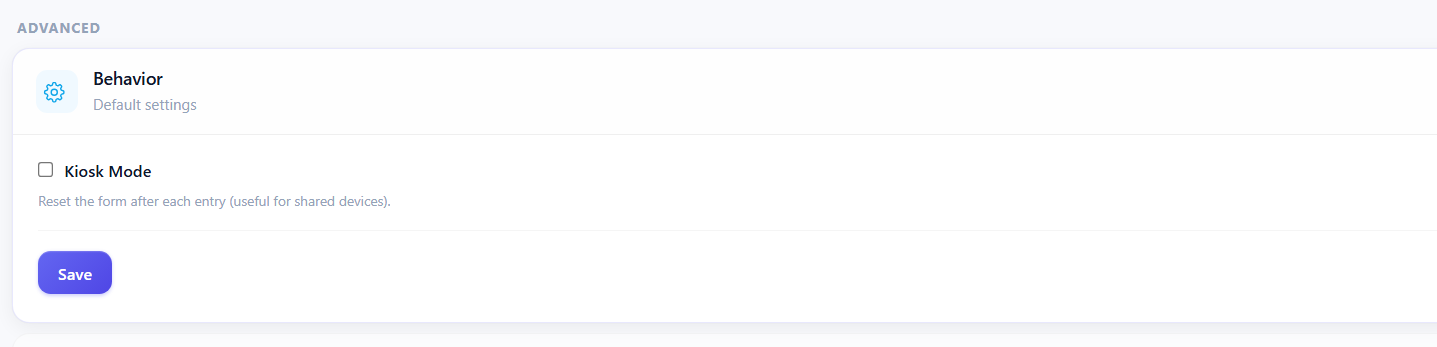
Click Behavior to enable Kiosk Mode, which disables the Site’s built in cookies. This is useful for on-site campaigns where multiple users will enter on a single device. More on Kiosk Mode here.
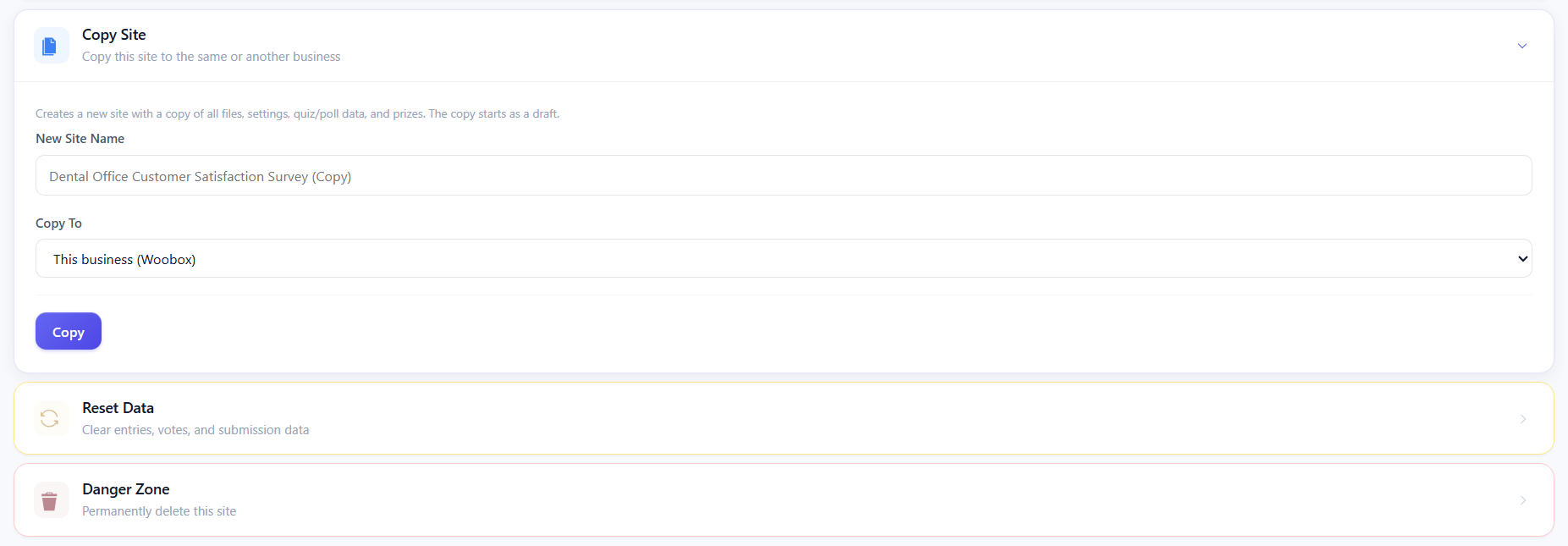
At the bottom of the Settings tab, you can click Copy Site to make an exact copy of the site with a unique URL. The copy can be made to the same business, or any other business in your account. Click Reset Data to clear and permanently delete all entry and vote data, uploads, and traffic stats. And click Danger Zone to permanently delete the site (this cannot be undone).
This is just a general guide on getting started with the AI Builder and basic settings. Stay tuned for other guides on more specific Site types! If you have any questions or need help with your campaigns, don’t hesitate to email us at support@woobox.com!