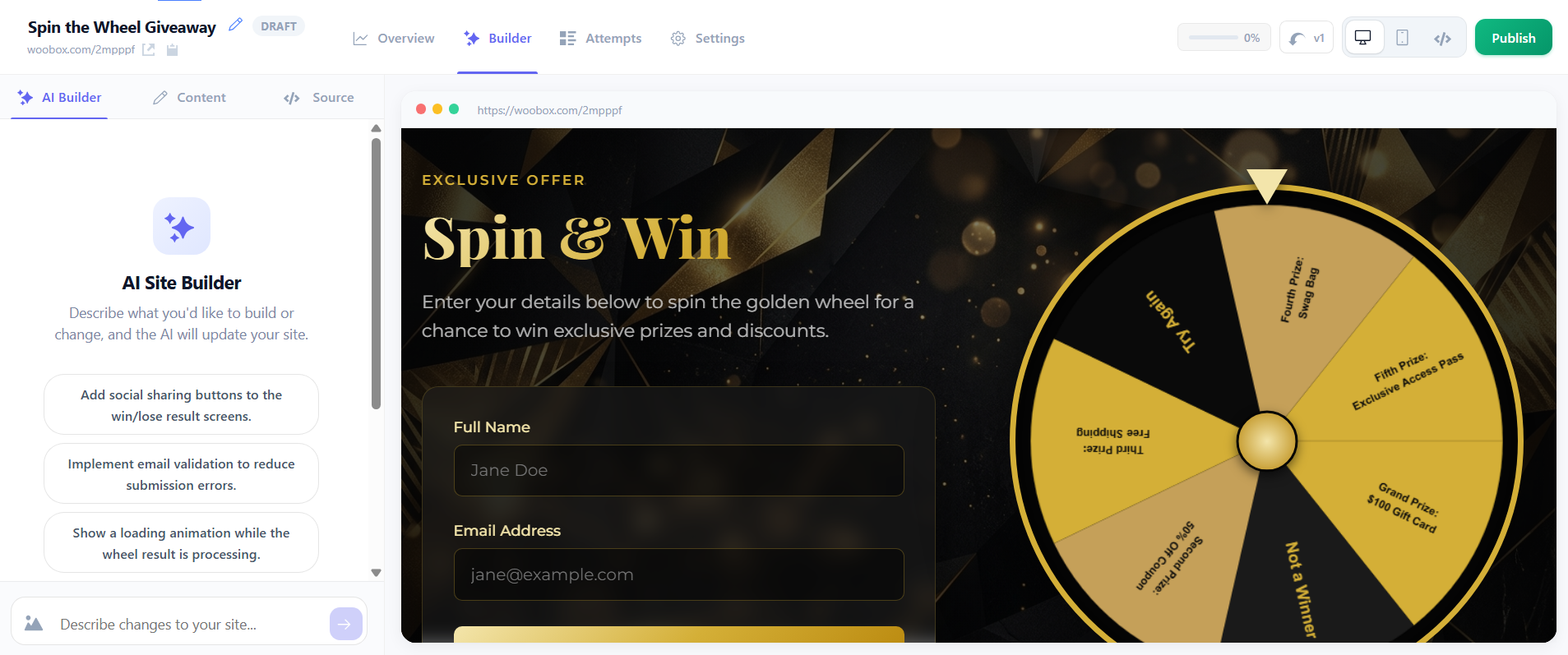
To begin, you could start with the “Spin to Win” template in the Instant Win & Games category under the prompt field, or type a new prompt into the field. Your prompt could be something like “Create a spin the wheel giveaway with 5 prize slots and 2 not-a-winner slots. Require names and email addresses for entry. Make the theme black and gold.” *Feel free to enter a more detailed prompt, the Builder can handle it!
In the Builder tab, you can continue editing/refining your Site by inputting additional prompts in the AI Builder section, edit headings, text, and field labels in the Content section, or edit the landing page with custom HTML or CSS in the Source section. Click the </> icon in the upper right corner to select embedding settings, and copy the Site’s embed code.
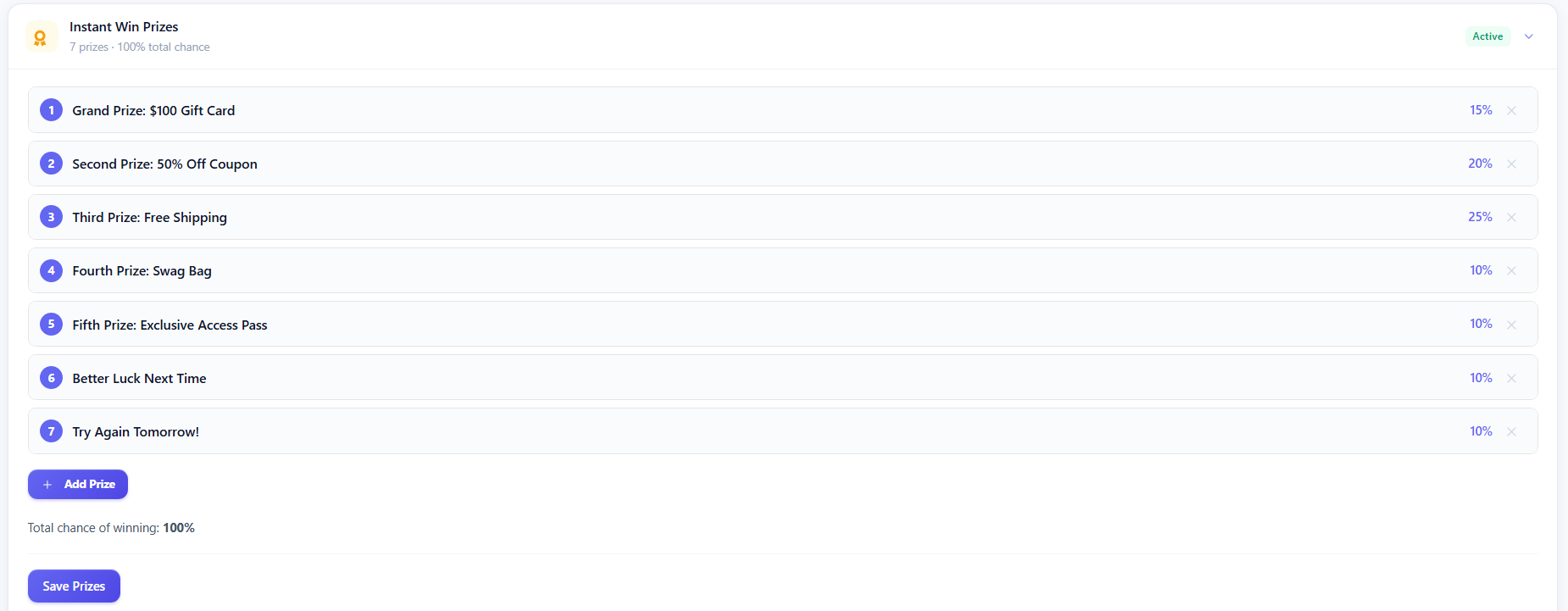
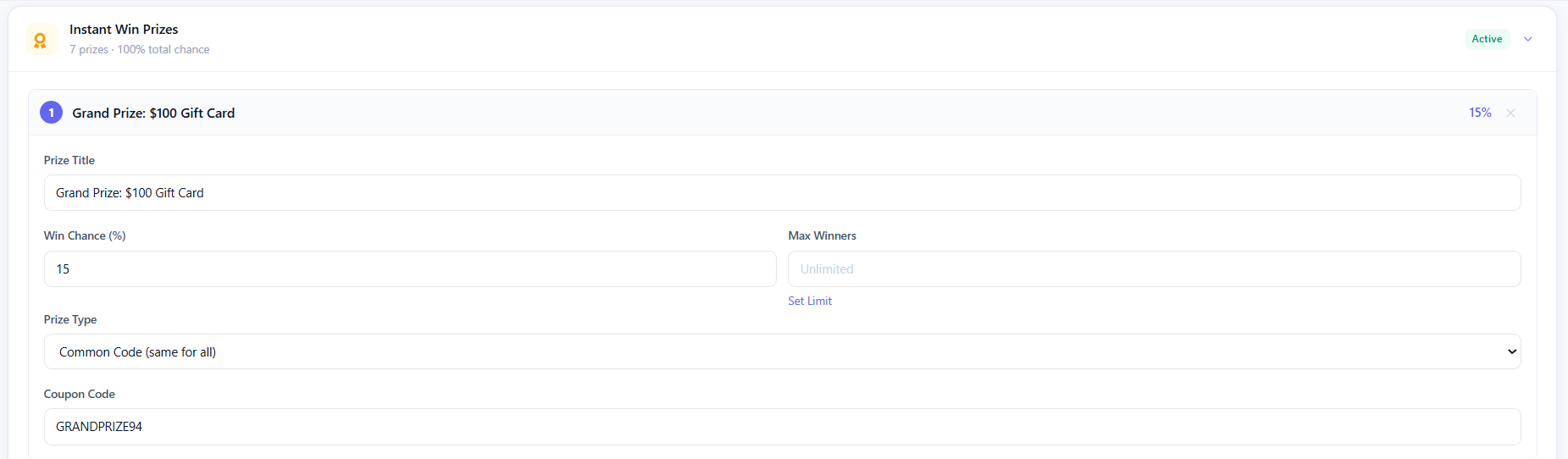
In the Settings tab, you’ll find the Instant Win Prizes section where you can edit prize titles, odds of winning, prize limits, prize type, etc. You can also add new prizes here. Pro tip: if you don’t want a certain prize (like the grand prize) to be won too early during the campaign, you can make the odds “0” or very low, and then increase the odds of winning that prize later.
After clicking on a prize:
The Settings tab is also where you can publish your site, set start and end dates, manage entry limits, enable bonus entries, and other basic settings.
In the Attempts tab, you can view or export entry data, or use the Winner Picker (even in an Instant Win type offer, you may want to randomly select a grand prize winner, or something similar). To start loading your Entries CSV for download, click the Export button. Once the file has loaded, you’ll see a green “Download” button.

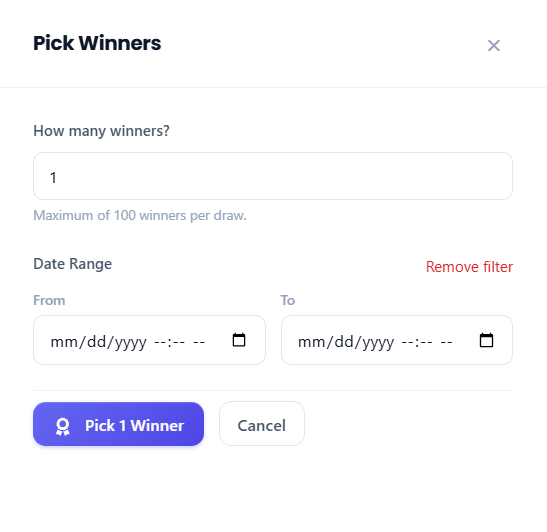
To randomly select a winner, click Pick Winners. Then, enter the number of winners you’d like to pick (if more than one), optionally select a date-range to pick from, and click the “Pick [x] winners” button.
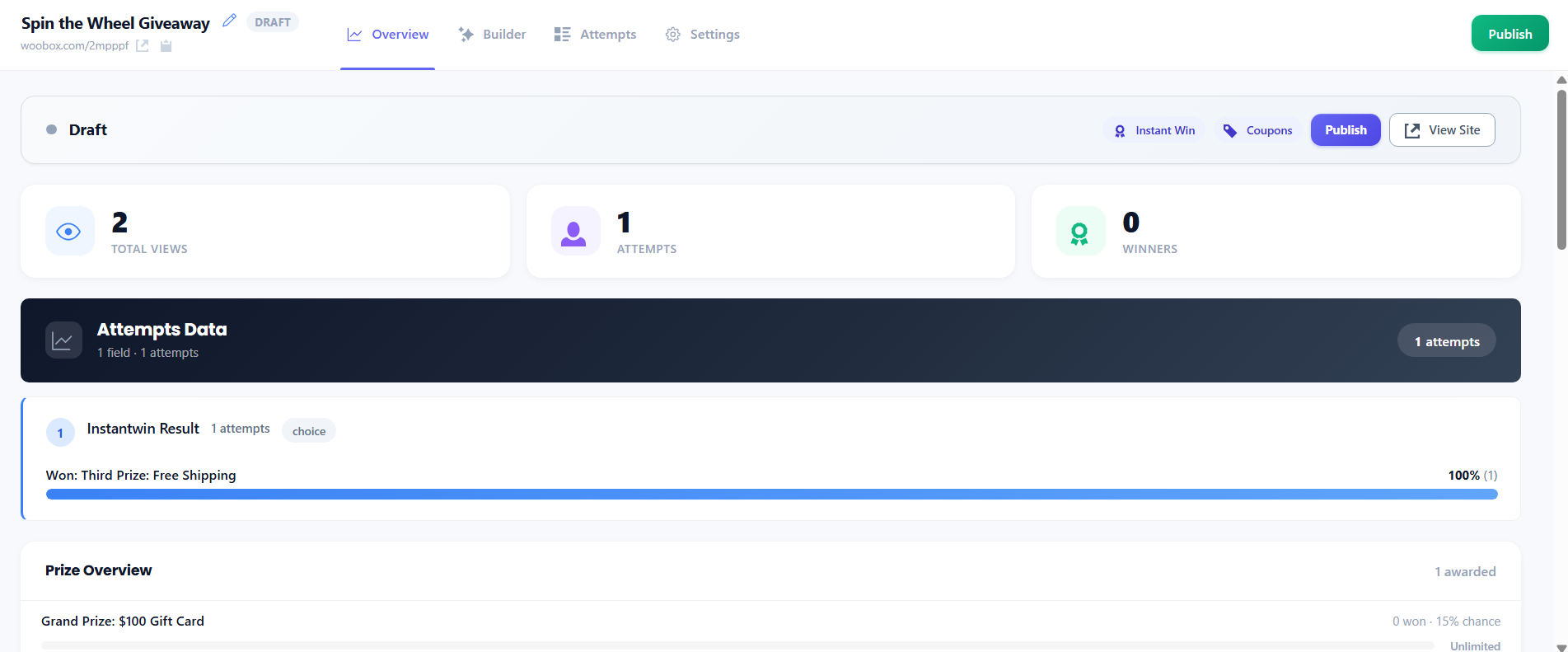
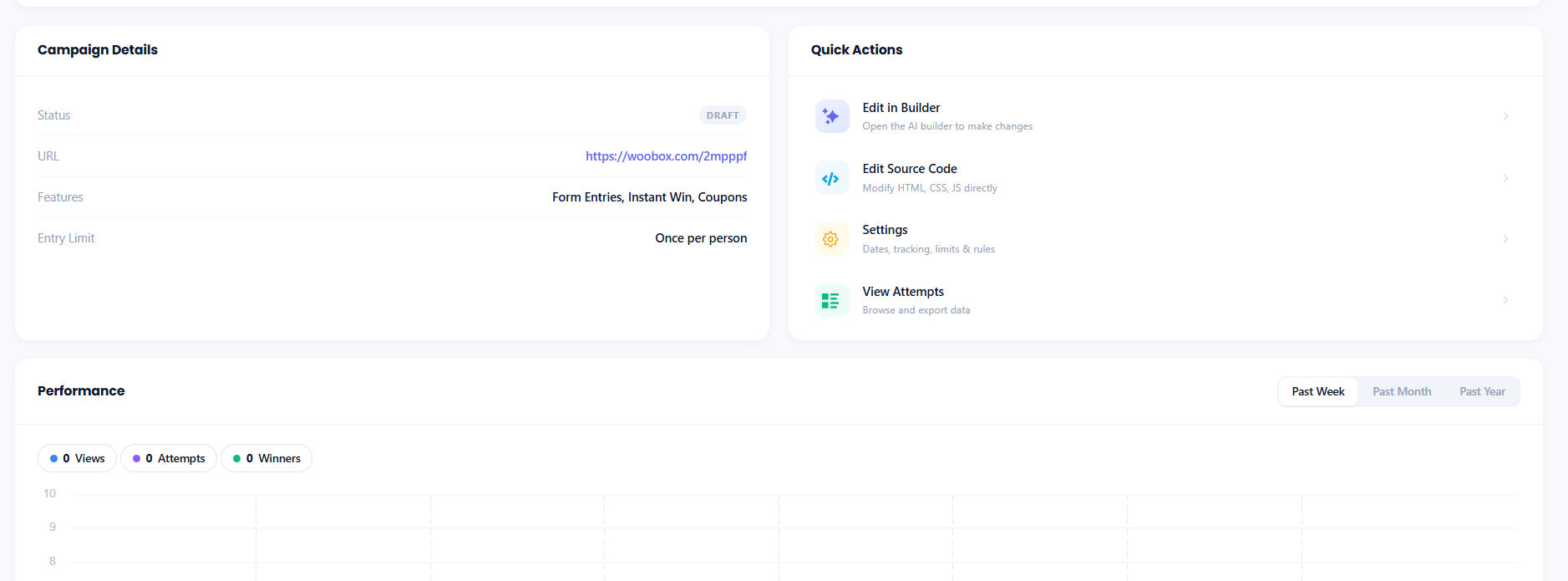
The Overview tab displays total visits, attempts, and winners, as well as a quick-view of prizes won. You can also see publish dates, traffic/performance stats, and the Quick Actions links to Settings, and other tabs in the dashboard.
Feel free to email us at support@woobox.com if you need help with your Site, or if you have any questions!